


You change one promotional banner on your Shopify store before breakfast. By lunch, the desktop homepage looks sharper, but mobile visitors can't find the product button, the announcement bar pushes the first image below the fold, and checkout activity starts to soften. Nothing looks obviously broken, which makes this kind of revenue damage particularly difficult to spot.
Short answer: Most Shopify edits happen in Online Store > Themes > Customize, where you can change sections, blocks, images and text without touching code. Work on a duplicate theme, preview on mobile and desktop, then publish once the change looks right.
That's why learning how to edit a Shopify website involves more than knowing which menu to open. You need a controlled process that separates safe content changes from structural development, protects the live theme, checks mobile behavior, and measures whether the change helped customers complete their purchase.
A Smart Starting Point Before You Change Anything
A Cincinnati retailer once asked for what sounded like a simple update: replace a homepage image and add a seasonal promotion. The image looked fine on a laptop. On a phone, it crowded the heading, pushed the call to action down the page, and made the first useful product content harder to reach. The edit was technically successful, but commercially poor.
That distinction matters. Shopify makes many storefront changes accessible to nontechnical owners through its modular system of templates, sections, and blocks. In the admin, you can open Online Store, select a theme, choose Edit theme, and adjust content through the sidebar. The editor can add, remove, reorder, and configure sections and blocks without rebuilding an entire page. Shopify currently permits up to 25 sections in a template and as many as 1,250 blocks across those sections, with lower limits possible for specific section types, and nested structures can reach eight levels when a theme supports them. Shopify's section documentation explains the available structure and its theme-dependent limits.
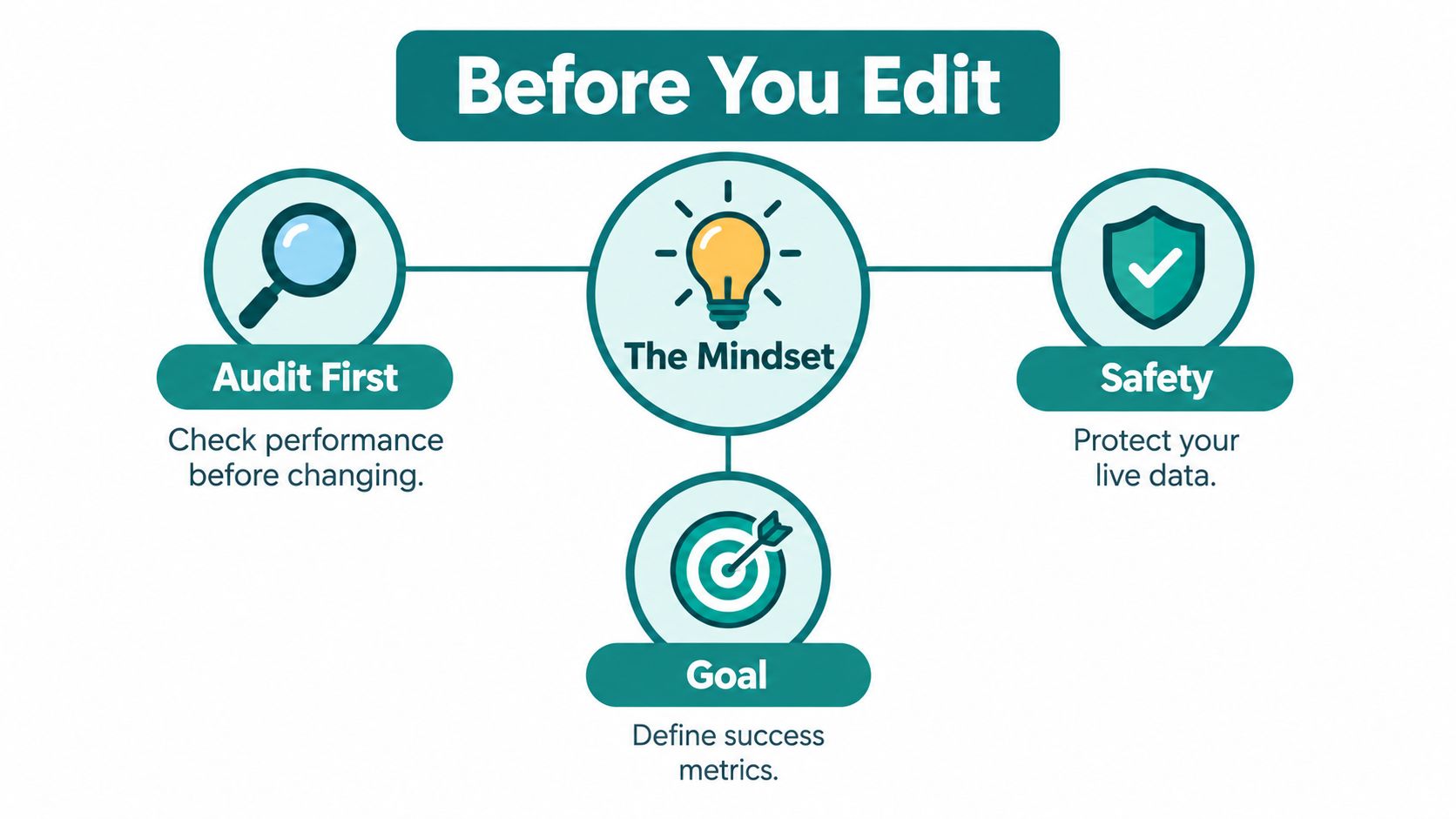
Sort the request before opening the editor
A new product description, hero image, announcement bar, or typography adjustment is usually a content or configuration edit. A new reusable homepage module, custom product interaction, external integration, or unusual page layout may be a theme development task. The first group often belongs in the visual editor. The second may require Liquid, JSON, CSS, JavaScript, or a developer-created section.
Also identify the surface:
- Shopify admin: Product details, collections, navigation, blog content, and SEO fields.
- Theme editor: Layout, colors, typography, sections, blocks, and template assignments.
- App blocks: Features supplied by installed applications, subject to the app and theme.
- Checkout extensions: Supported checkout and post-purchase areas, depending on the store's plan and configuration.
- Theme code: Liquid files generate storefront HTML, while JSON files store editor configuration and page structure.
Header and footer groups are shared across storefront pages, so a change there can affect the entire site. A product or landing-page section may affect only pages using that template. Before beginning, write down the goal, the affected surface, the current baseline, and the rollback plan. For broader context on choosing between routine customization and development, HDM's guide to Shopify website development services is a useful reference.
Practical rule: If you can't describe what success means before publishing, you're not ready to make the change.
Editing Pages, Sections, and Blocks in the Theme Editor
The no-code path starts in the Shopify admin. Open Online Store, select Themes, find the theme you want to work with, and choose Edit theme. Shopify opens the visual editor with a preview and a sidebar. The exact controls vary by theme and version, so another store may show different options even when both stores use Shopify.

Work from the right template
Use the preview selector to move between the home page, collection page, product page, cart, blog, and landing pages. A template is a reusable page layout, not a single isolated document. If several products share a product template, changing one template section can affect every product assigned to it.
A section is a larger content module, such as a hero banner, featured collection, image-and-text panel, or newsletter signup. A block is a smaller item inside a section, such as a heading, button, product card, or promotional item. You can usually add, remove, and reorder both from the sidebar. Shopify's section architecture supports controls such as settings, blocks, presets, and placement restrictions, which is why one theme may let you add a section in many places while another limits it.
Make common changes carefully
- Hero image: Open the hero section, replace the image, and check its crop on phone and desktop layouts.
- Promotional banner: Edit the text and link in the banner block, then test whether the message remains readable over the image.
- Product copy: Update the product in the admin when the change concerns one product's title, description, media, or options.
- Collection filters: Use the collection or filtering controls provided by the theme and installed apps. Don't assume every theme exposes the same filter settings.
- App block: Add the app's block only when the application supports the current theme. Confirm that it doesn't duplicate an existing review, search, or recommendation feature.
- Colors and typography: Use theme settings for global brand choices so the change stays consistent rather than editing individual blocks one at a time.
Header and footer changes deserve extra caution because section groups can apply across the storefront. Use the editor's preview and undo controls before saving, open several representative templates, and check links, images, buttons, and forms. The visual editor is ideal for controlled content changes, but it can't create functionality that the theme doesn't expose.
<iframe width="100%" style="aspect-ratio: 16 / 9;" src="https://www.youtube.com/embed/lbrYhVyBBWA" frameborder="0" allow="autoplay; encrypted-media" allowfullscreen></iframe>A Safe Editing Workflow That Protects Your Live Store
The safest Shopify edit begins by leaving the live theme alone. In Shopify Admin, open Online Store, go to Themes, duplicate the current theme, and make the change in that duplicate. The copy gives you a private working area and reduces the chance that an unfinished banner, broken script, or incorrect template reaches customers.
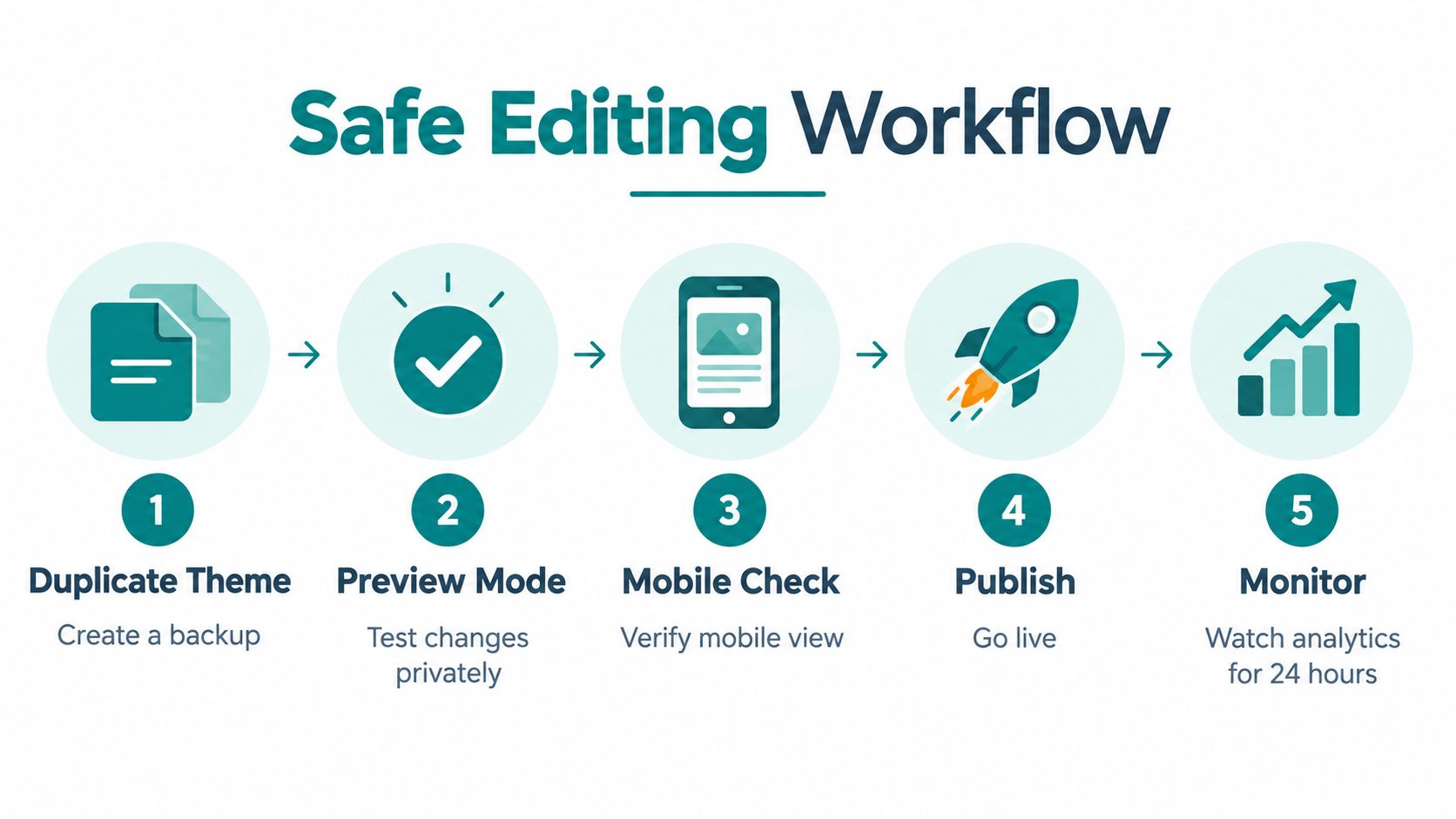
Use five deliberate checkpoints
- Duplicate the theme. Name the copy with the date and purpose, such as “Holiday banner test.” Preserve the live version as your known-good reference.
- Edit the duplicate. Start in the visual editor. Move to Liquid, HTML, CSS, or JavaScript only when the required setting doesn't exist.
- Preview representative pages. Check the homepage, a collection, a product, the cart, and any important campaign landing page. Test both desktop and mobile layouts.
- Run a functional pass. Open navigation, select product variants, submit forms, add items to the cart, apply discounts if relevant, and confirm the checkout handoff.
- Publish deliberately and monitor. Record what changed, when it went live, and which metrics you'll compare. Don't publish just because the preview looks attractive.
A Black Friday banner needs more than a visual review. A homepage redesign needs a product and cart test. An app replacement needs checks for duplicate scripts, missing blocks, and changed behavior. If routine updates are delegated, an ecommerce virtual assistant can help with repeatable content tasks, provided someone with theme knowledge owns approval and QA.
Shopify warns that a theme update can omit conflicting custom code. Keep a versioned copy of changed files and review the updated theme before releasing it. If a defect appears, theme code file history may help, but preserve the current file first because restoring an earlier version replaces the entire file. If a published change causes trouble, stop making additional edits, preserve the affected theme, switch back to the known-good copy, and compare analytics before attempting another release.
Liquid, JSON, Apps, and What Each Edit Surface Actually Does
Shopify's visual editor is the control panel, not the whole machine. The underlying theme uses Liquid files to generate the store's HTML, while JSON templates store page configuration that merchants can change through the editor. Sections and blocks provide reusable modules, and the theme settings schema holds shared values such as colors and typography. Shopify describes the broader structure through directories including layout, templates, sections, snippets, config, locales, and blocks in its theme architecture documentation.
A practical way to classify requests is to ask whether the business wants different content or new capability:
- “Change the hero headline” is a section setting or block-level content edit.
- “Use a different brand color everywhere” is usually a global theme setting.
- “Add another promotional card” may be a block change if the section supports blocks.
- “Build a new reusable comparison module” is theme development.
- “Change the structure of every product page” may require template and section work.
- “Connect a custom pricing system” is an integration project, not a routine editor task.
The scope of a setting matters. Shopify supports theme-level, section-level, and block-level settings. A global color belongs at the theme level, a hero headline belongs to one section, and a label inside one promotional card belongs to that block. Reusing the correct scope prevents inconsistent copies of the same business information across multiple pages. Shopify's settings documentation explains how those scopes are represented.
Know where 2025 changes fit
Shopify's 2025 updates expanded theme-editor capabilities such as block previews and renaming, with third-party reporting noting that these improvements initially applied specifically to Horizon-based themes. That doesn't mean every theme exposes the same controls, so check the theme architecture before following a tutorial written for another setup.
Checkout is a separate architectural area. Shopify says Checkout Blocks can support no-code customization on thank-you and order-status pages across all plans. Shopify also reports that checkout-loading changes let customers interact more than one second sooner, while accelerated checkout buttons load up to 58.8% faster on product pages. Shopify's checkout update information provides the reported details and plan context. Treat checkout edits as a separate release, not as ordinary theme decoration.
Mobile-First Editing and Why It Is a Revenue Decision
Shopify's published guidance states that mobile devices generate 71% of global ecommerce orders. Shopify's mobile commerce guidance makes the commercial implication clear: phone usability deserves the same attention as desktop design, and usually more.
Baymard reports that none of its benchmarked mobile sites achieved an overall “good” user experience rating. It rated 62% as “mediocre” or worse, and testers encountered more than 3,600 mobile usability issues. Baymard's mobile commerce research documents the benchmark context. A desktop redesign can therefore look polished while making the phone journey slower, harder to scan, or more difficult to operate.

Run the phone test before publishing
Open the duplicate theme on a real phone, not only in a desktop browser resized to a narrow window. Scroll through the page, tap every primary button, open the menu, select a variant, enter the cart, and test forms with one hand. Watch for buttons that sit too close together, sticky bars that cover content, text that overlays an unreadable image, and popups that block the product information customers need.
Check image weight and layout stability as well. A large hero image or animation can delay useful content and shift the page while it loads. Review your Core Web Vitals and device-specific conversion baseline before an important redesign, then compare them after the change. The business question isn't whether the page looks better. It's whether shoppers can find, understand, and buy the product with less friction.
Baymard reports approximately 70.19% cart abandonment globally, and its checkout research found that 17% of US online shoppers abandoned an order because checkout was too long or complicated. The same research reports an average of 11.3 checkout form fields and indicates that many sites can reduce visible fields by roughly 20% to 60%. Baymard's checkout usability benchmark supplies the research context. Use these findings as a reason to inspect friction, not as a promise that one visual edit will fix checkout.
For a focused checklist on how to boost Shopify sales on mobile, compare your own phone recordings and analytics with the advice. Cincinnati businesses can also use HDM's guide to Shopify conversion rate optimization when a design change needs measurement beyond the theme preview.
Editing for SEO Without Falling for the Myths
Shopify SEO starts with information customers and search engines can understand. In the admin, review each product and collection's page title, meta description, URL handle, primary copy, images, and internal links. Write a specific title that identifies the product or category and its location or differentiator where relevant. Then write a description that explains the value of the page rather than repeating keywords.
For example, a weak product title might say “Running Shoes.” A stronger version could identify the product type, intended use, and distinguishing feature without sounding mechanical. A collection description should explain who the collection serves and how the products differ, not add a paragraph of generic search phrases beneath a grid.
Separate on-page work from technical work
Meaningful alt text describes what an image communicates, such as “black leather work boot with reinforced toe,” rather than stuffing a list of location terms. Resize and compress images before uploading when possible, and avoid installing multiple applications that perform the same SEO task. Extra app scripts can complicate the storefront and may slow interactions.
Changing the theme's administrative name won't improve rankings. An SEO app also isn't a substitute for clear product information, sensible collection organization, useful internal links, or a technically sound theme. Shopify handles important baseline elements such as sitemap generation, but structured data quality, canonical behavior, robots directives, and custom schema can depend on the theme and integrations.
SEO is edited into the store through clear information and sound structure. It isn't installed by adding another dashboard.
Owners can safely improve titles, descriptions, image context, product copy, collection copy, and internal linking when they understand the page's purpose. They should bring in a developer before editing robots.txt, canonical tags, theme-generated structured data, or core template logic. One incorrect technical instruction can affect large portions of a store, so document the current behavior before changing it. HDM's complete guide to ecommerce SEO offers a broader framework for coordinating content and technical work.
A Practical Reference for Your Next Edit
Most Shopify edits become manageable when you classify them before touching the store. A headline, image, product description, brand color, or supported block is usually a merchant-controlled change. A new module, custom integration, database-dependent feature, checkout alteration, or multi-template restructuring deserves development oversight.
Keep this release checklist beside your screen
- Define the outcome. Choose the page, audience, business goal, and baseline metric.
- Duplicate the live theme. Never use the live theme as an experiment.
- Make the smallest useful change. One material change is easier to evaluate than a bundled redesign.
- Preview the affected templates. Check shared header and footer areas separately from page-specific sections.
- Test real interactions. Use a phone and desktop device, then test navigation, variants, forms, cart behavior, analytics events, and checkout handoff.
- Publish deliberately. Record the release and keep the previous version available.
- Watch business results. Compare add-to-cart rate, checkout initiation, payment completion, conversion rate, revenue per session, and device-specific performance.
| Editing Surface | Best Used For | Who Should Edit |
|---|---|---|
| Shopify admin | Products, collections, navigation, blog content, and SEO fields | Store owner or trained staff |
| Visual theme editor | Sections, blocks, colors, typography, images, and supported layouts | Store owner for routine changes |
| App blocks | Features supplied by an installed app | Owner with app-specific QA |
| Checkout extensions | Supported checkout, thank-you, and order-status customizations | Developer or experienced Shopify specialist |
| Liquid and JSON | New structures, reusable modules, template logic, and custom behavior | Shopify developer |
| CSS and JavaScript | Presentation or interaction unavailable in the editor | Developer after testing |
Bring in a partner when you're repeatedly restoring themes, seeing crashes after theme updates, losing mobile speed despite removing visual elements, or trying to change checkout behavior outside the controls your plan provides. The same applies when one requested edit affects several templates or depends on customer, product, or order data. HDM is a Cincinnati-area agency that works on Shopify storefront customization, SEO, analytics, mobile performance, conversion optimization, and custom development.
The goal isn't to avoid editing. It's to make editing routine, reversible, and accountable. With a duplicate theme, a mobile check, a functional QA pass, and a defined metric, many everyday changes are safe for a business owner to handle.
Frequently asked questions
- Where do I edit my Shopify website?
- In the Shopify admin, go to Online Store, choose Themes and select Customize to open the theme editor. Product, collection and navigation details are edited in their own admin sections.
- Can I edit my Shopify theme without breaking the live store?
- Yes. Duplicate the live theme, make and preview changes on the copy, and publish it only after checking it on mobile and desktop.
- When should I hire a developer for Shopify changes?
- Bring in a developer for custom sections, Liquid or JavaScript changes, integrations, or edits to technical SEO settings such as canonical tags and structured data.
HDM helps Cincinnati-area businesses customize Shopify storefronts, improve mobile and checkout performance, and connect SEO work to measurable growth. Visit HDM to discuss a safer next edit or a larger Shopify development project.