


Your website says the marketing is working. The phone feels quieter, your office manager can't find half the reported inquiries, and you're wondering whether a new website or more SEO would help. Before you increase the budget, you need to know what Google Analytics is counting.
Learning how to set up conversion tracking in Google Analytics starts with choosing meaningful actions, but installation isn't the finish line. The useful test is whether completed forms match your customer relationship management system, or CRM, and whether purchases match payment records. For Cincinnati business owners, those checks make the difference between a reassuring dashboard and information you can use to spend confidently.
Which Actions to Track and What to Name Them
Say a contractor sees 140 form fills but only 22 booked jobs. In this hypothetical example, someone labeled page views and button clicks as leads, so the owner can't tell how many people requested an estimate. Not every legitimate lead will become a job, but the starting count must represent genuine inquiries.
Track actions tied to revenue or a clear next step. Google Analytics 4, or GA4, records interactions as events. A key event is an event you flag as important to the business. Google's key-event documentation explains that someone with at least Editor-level property access can select the star beside an event under Admin → Data display → Events.
Common business actions and their GA4 event setup
| Business action | Event name | Trigger that should fire it | Value to send |
|---|---|---|---|
| Contact or quote form submitted | generate_lead | Form success page or form success callback | Estimated lead value and USD |
| Phone number tapped on mobile | phone_call_click | Click on tel: link | Estimated value of a call |
| Online purchase completed | purchase | Order confirmation after payment succeeds | Order total, currency and transaction ID |
| Appointment booked | book_appointment | Booking confirmation screen | Estimated value per appointment |
| Newsletter signup | sign_up | Signup success message | Optional small value |
A trigger is the condition that tells your tracking tool to send an event. Use lowercase names, underscores instead of spaces, and one consistent name for each action across the site. Names such as phone_call_click and book_appointment are custom choices, not universal built-in events.
Parameters add detail to an event. Useful examples include form_name, service_type, value, and currency. According to Google's custom-parameter guidance, standard properties support up to 25 custom parameters per event, with 100 characters per parameter value. Custom fields also need registration as custom dimensions or metrics before you can use them in ordinary reports.
If your team later connects Analytics to an AI-assisted reporting workflow, NotFair's Google Analytics MCP integration is a resource to evaluate. An integration can't fix unclear event definitions, so settle the naming first.
For a service business, start with this manageable list:
- First key event: Completed quote request,
generate_lead. - Separate intent signal: Mobile phone tap,
phone_call_click, which doesn't prove a conversation happened. - Booking outcome: Confirmed appointment,
book_appointment. - Secondary engagement: Newsletter registration,
sign_up.
How to Mark a Form Submission as a Key Event
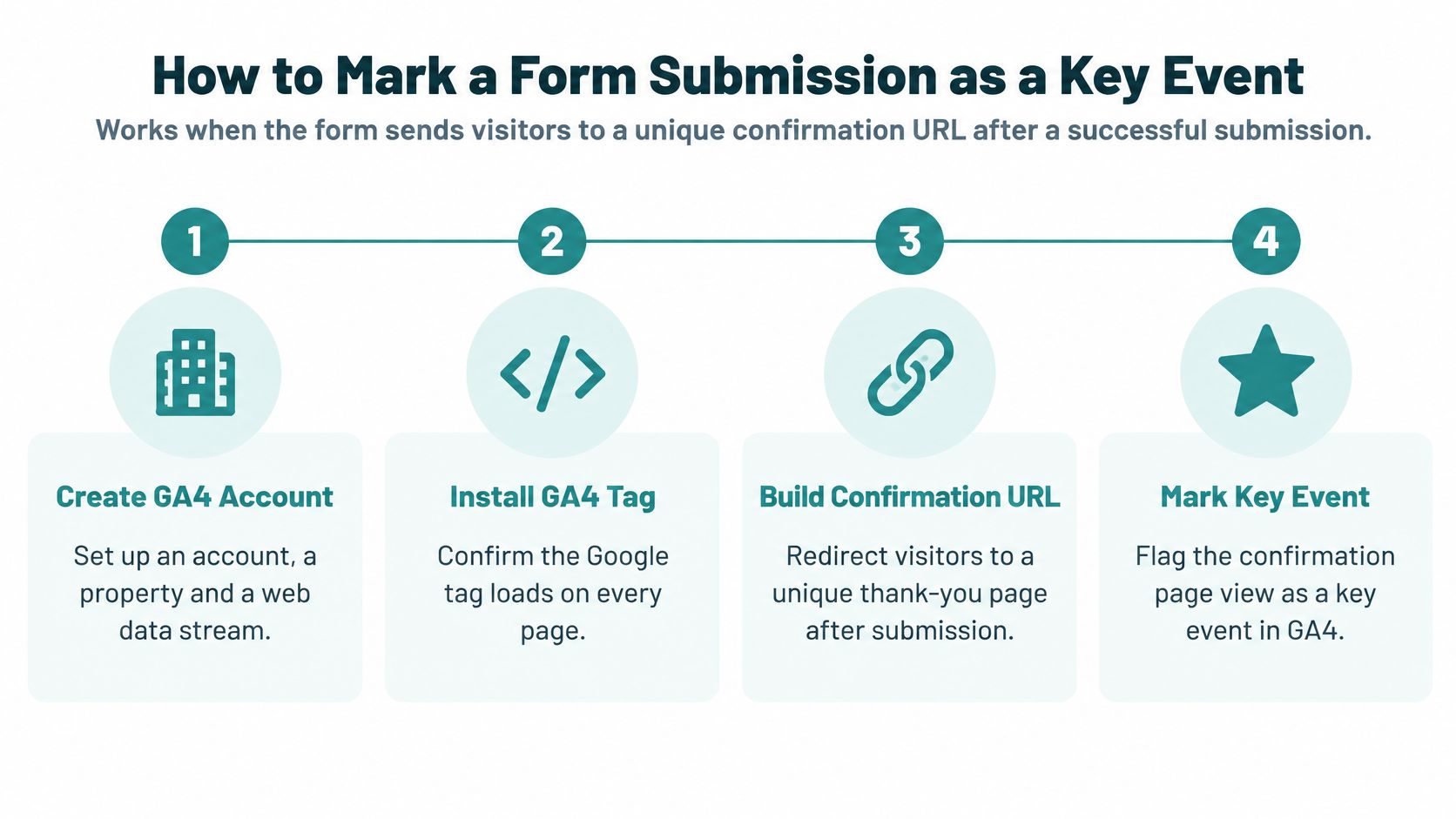
This method works when a successful form submission sends visitors to a unique confirmation URL. It isn't suitable for a form that displays a success message without changing the address.
Google's confirmation-page setup guide describes creating generate_lead without custom code, using an existing page_view event and a matching confirmation-page address.
The process depends on a real success page, not just a page with a thank-you message.
Build and verify the confirmation-page event
-
Create the Analytics foundation. Set up an account, a property for the business's measurement, and a web data stream for the website. Install the Google tag, the code that sends website activity to Analytics, directly or through Google Tag Manager; Google's event implementation documentation describes both implementation routes.
-
Submit a test form. Note the exact successful destination, such as
/contact-us-submitted. Also try an incomplete submission so you know the error state doesn't use that same address. -
Open the event controls. Go to Admin → Data display → Events, then select Create event. Work in the correct property, especially if your business has separate production and development websites.
-
Define the matching rule. Name the event
generate_lead, choose Create without code, and usepage_viewas the source event. Add apage_locationcondition matching the confirmation address;page_locationmeans the URL of the page being viewed. -
Save and check Realtime. Open Realtime, the report showing recent activity, and complete another successful form submission. Confirm that
generate_leadappears rather than assuming that saving the rule made it work. -
Mark the event as a key event. Select its star in the Events area. This tells Analytics to treat the completed inquiry as a business outcome, rather than just another interaction.
-
Check access to the confirmation page. Remove it from menus and ordinary navigation, and test direct visits or a saved bookmark. If revisiting it generates another lead, use a success callback or server-validated protection instead of relying on the URL alone.
A success callback is a message from the form software confirming that submission completed. That's different from the visitor pressing Submit.
A failed submission must never load the same confirmation URL. Your successful test should show one generate_lead event per completed form, with its page location available to inspect, and a corresponding inquiry in your inbox or CRM.
How to Track Purchases and Lead Values in Google Tag Manager
Google Tag Manager, or GTM, lets you manage tracking tags and their triggers from one interface. It's useful when forms don't change the URL or a shopping cart needs to send order details. It's not the only implementation option, and a reliable ecommerce integration may already handle this work.
For a custom setup, connect tracking to confirmed business activity rather than the appearance of a button.

Send confirmed order details
-
Install the GTM container. A container holds your tags, triggers, and settings. Confirm that the site's Google tag is configured for the correct GA4 measurement ID, and check whether a plugin or existing installation already sends purchase events.
-
Ask your developer to send a
purchaseevent to the data layer after the server confirms payment success. The data layer is a structured message area on the website; includetransaction_id, numericvalue,currencyset toUSDfor dollar transactions, and item details. -
In GTM, create a Custom Event trigger listening for
purchase. The spelling must match the data-layer event exactly. -
Create a GA4 Event tag named
purchaseand connect it to that trigger. Mapvalue,currency,transaction_id, anditemsto data-layer variables, which retrieve the corresponding information from the website. -
Use Preview mode before publishing. Complete a test order and inspect which tags fired. Check GA4 DebugView, the event inspection screen for test traffic, to verify the event and its parameters.
-
Publish the container with a clear version description. Complete a controlled live check afterward so you know the published version behaves like the preview.
For leads, use the same pattern with generate_lead, triggered by a successful submission callback. Google's debugging guidance explains enabling debug information so test events can be monitored before you trust the implementation.
The common mistake is firing on Buy or Submit. A visitor can click either button before a payment fails or a required field produces an error. The fix is to trigger after the server confirms success.
This video provides another view of the tracking workflow.
<iframe src="https://www.youtube.com/embed/JT-RpVJ6zg4" width="100%" height="400" frameborder="0" allowfullscreen></iframe>Give values an honest meaning
Google's event-value guidance specifies sending both numeric value and currency for monetary context. A lead value is an estimate, not collected revenue; document its basis and review it against closed sales. Never put names, email addresses, or phone numbers in ordinary Analytics event parameters.
Phone taps need a separate GTM link-click trigger where Click URL starts with tel:, connected to a GA4 Event tag named phone_call_click. Test by tapping the number on a phone in Preview mode and confirm a single event per tap.
Purchase acceptance check: The event should contain a revenue amount, currency, and a transaction ID matching the payment processor's order record.
Consent Settings That Change What You See
A dashboard can show modeled totals while an advertising platform receives less attributable information. That means apparently healthy numbers don't prove that your advertising measurement is complete.
A cookie banner isn't proof that tracking is finished or compliant. The banner's choices must reach the tags, and the resulting behavior must match your implementation and privacy requirements.

Test what each choice actually changes
- Granted: Check that permitted measurement works and consent updates reach the tags.
- Denied: In an advanced Consent Mode implementation, verify the intended cookieless behavior rather than expecting ordinary cookie-based tracking.
- Unknown: Test before the visitor makes a choice. Confirm the default state isn't accidentally treating silence as permission.
Consent Mode adjusts Google tag behavior according to consent signals. With advanced implementation, denied storage can result in cookieless pings, limited measurement messages sent without storing analytics or advertising cookies. Modeling may fill some gaps, but it doesn't recreate every missing customer record.
Google reports that Consent Mode conversion modeling recovered more than 70% of ad-click-to-conversion journeys lost because of cookie-consent choices in early Google Ads results; that's an average, not a guarantee for your website, according to its Consent Mode documentation.
Analytics and advertising permissions aren't interchangeable. The ad_user_data setting affects advertising uses such as enhanced conversions, which use permitted customer-provided information to improve matching, and denied consent can limit click-ID data exported for bidding.
Use the website cookie compliance guide to frame the implementation review. Compare the same week's Analytics and CRM records under each consent state, including regional behavior. Healthcare organizations and law firms should have a privacy reviewer approve what information may leave their systems.
How to Test Each Conversion Before Trusting It
If the same completed inquiry sends the marked event twice, your key-event count can overstate the business outcome. Google's key-event counting guidance makes counting configuration an essential part of validation, not a substitute for preventing duplicate collection.
Start with a controlled test rather than a conversion-rate benchmark. You need evidence that the event represents what its name promises.
Run a repeatable test matrix
- Enable debug collection through GTM Preview or the appropriate GA4 debug setting, then open DebugView.
- Submit a test form with analytics consent granted. Compare the received event name with the marked key-event name, including spelling and capitalization.
- Inspect the parameters. Confirm the intended value and currency are present, and that no personal information slipped into form-related fields.
- Run the scenarios below, including a browser-back test after confirmation. Repeat relevant cases on desktop and mobile, with new and returning visitors.
- Record actual results beside expected results. Save the test date, device, consent choice, and matching CRM or order reference.
Test matrix for conversion events
| Test scenario | What to check | Expected count |
|---|---|---|
| Successful form submission | Event name, value and currency present | One generate_lead event |
| Form with a validation error | No event fires on the error screen | Zero events |
| Refresh the thank-you page | Event does not repeat | Still one event |
| Declined card payment | No purchase event sent | Zero purchase events |
| Successful mobile payment | transaction_id matches the order | One purchase event |
| Cookie banner declined | Analytics runs without cookies under advanced Consent Mode | Lower or modeled count, as expected |
Browser-back behavior should not create a fresh lead unless the visitor completes another genuine submission. Also test payment-provider redirects, external booking domains, ad blockers, and applications that change screens without loading a new page.
Reconcile the business records
Compare Analytics with the CRM or payment processor by date, traffic source, and transaction ID where available. Align time zones and distinguish the date an inquiry arrived from the date it became a customer.
A gap is a reason to investigate, not permission to apply an arbitrary percentage correction. Use one authoritative trigger, transaction or event identifiers for deduplication where supported, and a backend status check for high-value transactions. Don't assume a generic event ID automatically deduplicates every GA4 event.
If suspicious activity remains, investigate bot traffic in Google Analytics before treating every reported inquiry as human demand.
No conversion report should support a spending decision until the test matrix passes and a full week's records reconcile, with any remaining differences explained.
Connect Key Events to Google Ads and Offline Sales
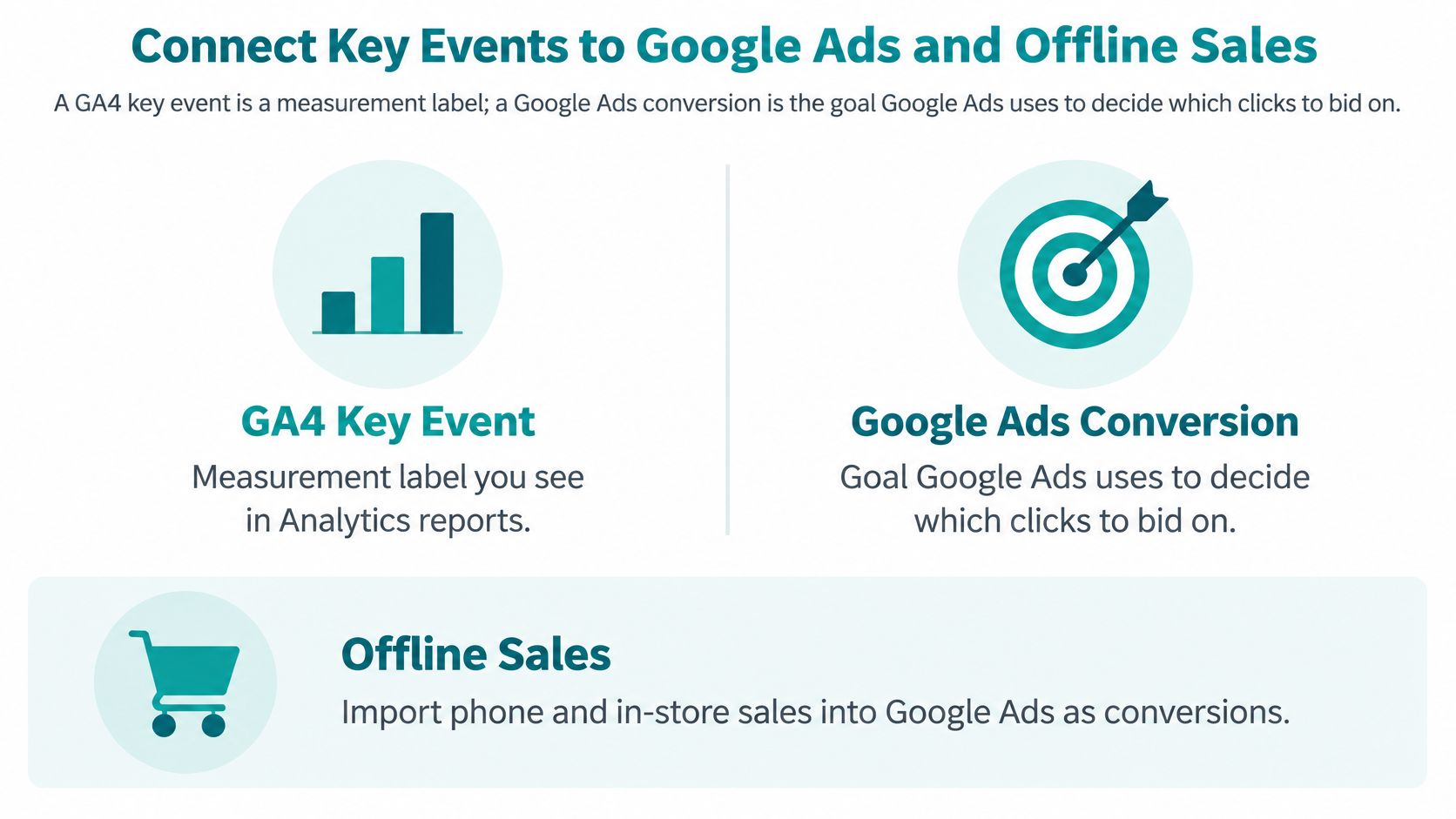
A GA4 key event labels an important action in Analytics. A Google Ads conversion is an advertising goal that can inform campaign reporting and bidding.
Google's event and key-event setup documentation describes creating meaningful events and configuring their measurement. Connecting those outcomes to advertising is a separate operational step.
Two measurement paths compared
| Measurement path | Where it lives | Purpose | Data it needs |
|---|---|---|---|
| GA4 key event | Admin → Data display → Events | Labels a meaningful action in Analytics reports | Event name, optional value and currency |
| Google Ads conversion | Google Ads conversion settings, imported from GA4 | Goal the ad platform bids against | Imported key event, counting method, default value |
| Offline conversion | Google Ads import from CRM records | Credits sales that close after a call or appointment | GCLID captured at first contact, plus qualified lead or revenue date |
The relationship should extend through the eventual sale, not end with the website form.
Connect the accounts and preserve the sales outcome
- Link the GA4 property to the correct Google Ads account.
- Import only outcomes that match the campaign's goal. Don't give page views the same optimization role as qualified inquiries.
- Review counting deliberately. GA4's once per event counts occurrences, while once per session counts a visit once; separately verify the imported Google Ads conversion's counting settings.
- Assign a documented default value and currency when actual transaction value isn't available.
- Confirm auto-tagging is enabled. It adds a Google Click Identifier, or GCLID, to eligible ad links so subsequent outcomes can be associated with an ad click.
For phone sales, clinic appointments, and signed clients, capture permitted campaign identifiers at first contact and store them with the CRM lead. Import the qualified outcome or closed revenue later, using a supported offline conversion workflow. Google's conversion-category documentation distinguishes offline outcomes occurring by phone or at a business location.
For decisions about channel credit, explore multi-touch attribution. For a broader explanation of attribution and financial evaluation, the guide to marketing ROI with The AI CMO provides additional context.
A lower conversion count can reflect better qualification. Counting signed clients instead of every form submission may produce a smaller number that's much more useful for deciding where to advertise.
Fix Conversion Problems or Bring in Help
A key event showing zero after a test usually means the event name doesn't match or the tag never fired. Start with the observed symptom, then inspect the specific condition that could produce it.
Don't rebuild the entire setup before checking the event name, trigger, and destination property. A narrow correction is easier to test and less likely to introduce another problem.
Conversion symptoms, causes and fixes
| Symptom | Likely cause | Fix |
|---|---|---|
| Key event shows zero after testing | Event name does not match, or the tag does not fire | Compare the name in DebugView with the key event name and check GTM Preview |
| Conversions roughly double | Two triggers fire the same event | Keep one trigger and deduplicate with transaction_id or an event ID where supported |
| GA4 leads far above CRM records | Thank-you page reloads or is reachable from navigation | Protect the page or trigger on the form's success callback |
| Purchases show no revenue | value or currency not sent | Add value and currency to the purchase event |
| Google Ads shows fewer conversions than GA4 | Consent denied or properties not linked | Check consent states, verify or repair account linking, and review imported key events |
| Leads rise but sales do not | Unqualified leads counted as conversions | Import qualified leads or closed revenue as offline conversions |
Choose help based on complexity
Bring in a specialist when you have several websites, an unconnected CRM, or a Shopify or WooCommerce store that sends customers through payment redirects. Patient information covered by health privacy rules such as HIPAA also requires a privacy-led review, not just a tag installation.
Helbling Digital Media (HDM) is a Cincinnati-area agency based in Springboro that handles analytics and conversion work for local businesses. It's one option to weigh alongside an internal team or a freelancer; ask any provider for an event plan, documented test results, and a reconciliation process.
Content production should follow trustworthy measurement. If you're planning campaign landing content, you might create advertorials and listicles with Landra, but judge the resulting campaigns by qualified inquiries and sales rather than publishing volume.
Set up one meaningful conversion this week and complete the acceptance tests before expanding. Reconcile it against CRM or payment records for 30 days as a practical review period, then decide whether the counts are reliable enough to support additional ad spend.
Helbling Digital Media offers analytics setup, conversion optimization, web development, SEO, and paid-media services that connect website activity with business outcomes. Visit Helbling Digital Media to discuss a conversion-tracking review covering event design, duplicate prevention, consent behavior, and reconciliation with your sales records.